
A practical Windows guide
Hide desktop distractions.
Keep your work visible.
Keep the document, editor, or reference apps you need on screen. Cover the surrounding desktop when those other windows keep pulling your attention away.
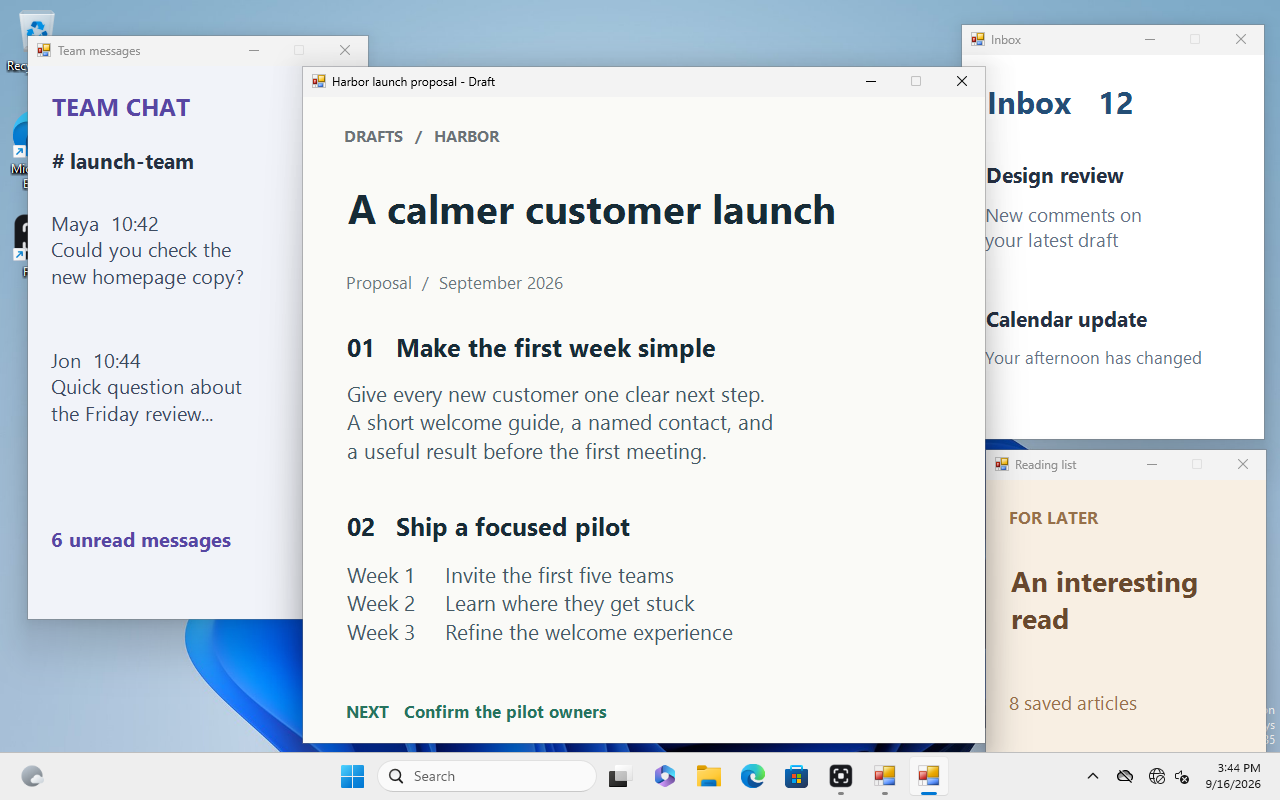
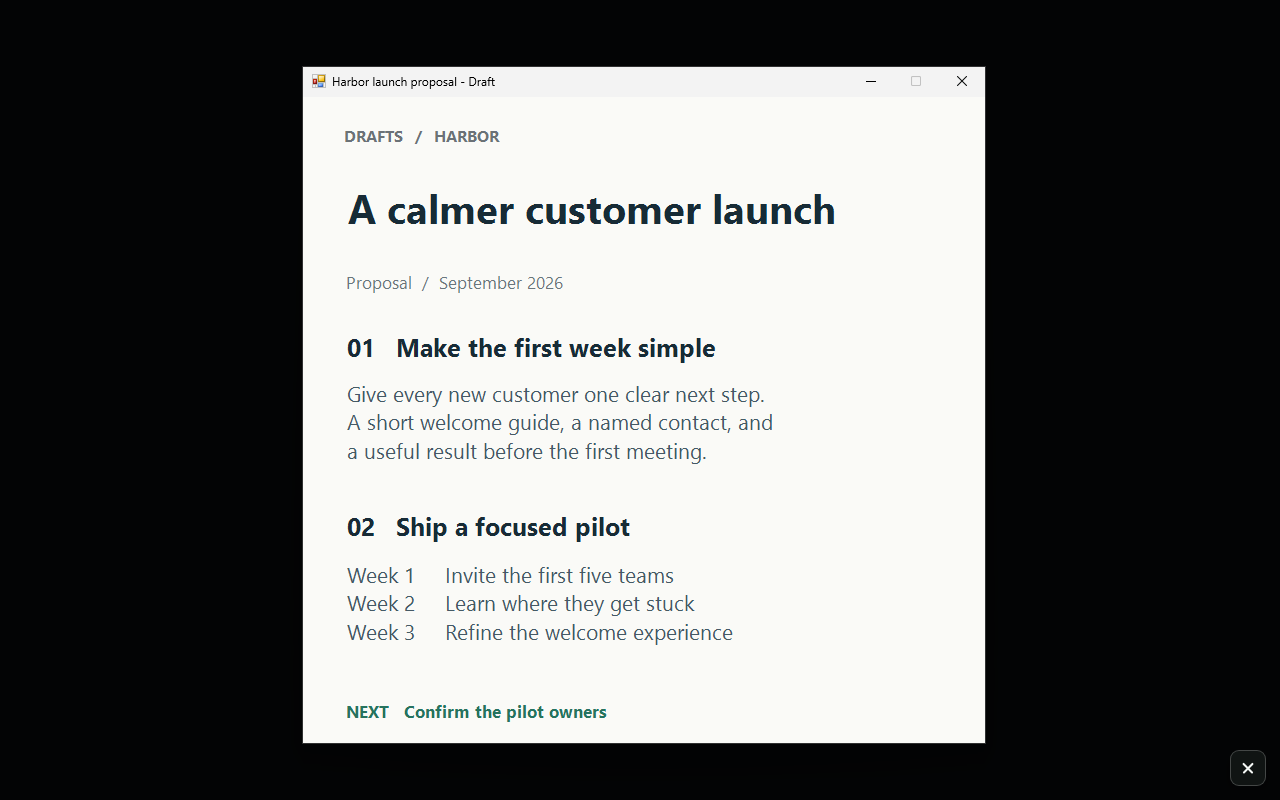
Your work stays.
The rest falls away.
Real Focal captures with fictional work apps. Compare before and after.
Start with the distraction you want to remove.
If notifications are interrupting you, Windows has built-in controls. In Windows 11, open Settings → System → Focus to configure a focus session. Starting a session turns on Do Not Disturb; focus settings can also hide taskbar badges and flashing.
To manage notifications directly, use Settings → System → Notifications → Do not disturb. Priority settings control which interruptions may still come through. Microsoft's Focus guide and notification settings guide explain those built-in options.
Focal addresses visible surroundings: other windows, desktop clutter, and unused screen space around the apps you choose. It can complement notification settings when you need several work apps visible together.
Keep selected apps visible with Focal.
- Open the apps for your task.
For example, open your writing app and the browser containing your reference material. Arrange them where you want to work.
- Choose them under “Keep visible.”
Open Focal and select the applications you want to leave uncovered. Selections apply to applications, so check the windows on each monitor before starting.
- Select “Start focus.”
Focal covers the surrounding desktop while the chosen applications remain visible and usable. The default toggle shortcut is Ctrl + Alt + F; use the shortcut shown in your settings if you changed it.
- Return to the full desktop when you need it.
Toggle focus off again. The default emergency exit is Ctrl + Alt + Shift + F. Your other apps remain open behind the covers.
For a recurring task, save your chosen applications in a profile. A writing profile and a coding profile can keep different sets of apps ready for your next session.
Check the result before settling into work.
Keep every reference app you actually need selected. If you selected a browser, its visible content can still distract you; Focal does not decide which tab belongs to your task. Close or switch those tabs yourself.
Use this as an attention aid. It does not block websites, enforce a productivity schedule, or secure private information. For a call or recording, choose the appropriate screen-sharing source and check its preview independently.
Before you try it.
Will Focal close my other apps?
No. Focal covers surrounding distractions while selected applications stay visible. Ending focus removes the covers; it does not close your other apps.
Does Focal block distracting websites?
No. Focal changes what is visible around selected applications. It does not block sites or prevent you from switching to other content inside an app you selected.
Can I use Focal as a privacy screen for meetings?
No. Focal is an attention aid, not a privacy or security boundary. Do not rely on its covers to hide sensitive information from screen sharing, recording, or other people.
Try it on your next task
See whether a quieter desktop helps.
Focal's full three-day trial starts on first run. No card is required. After the trial, keep using it with a $7.99 one-time license.